Fieldy 3 Device Guide
What’s in the box
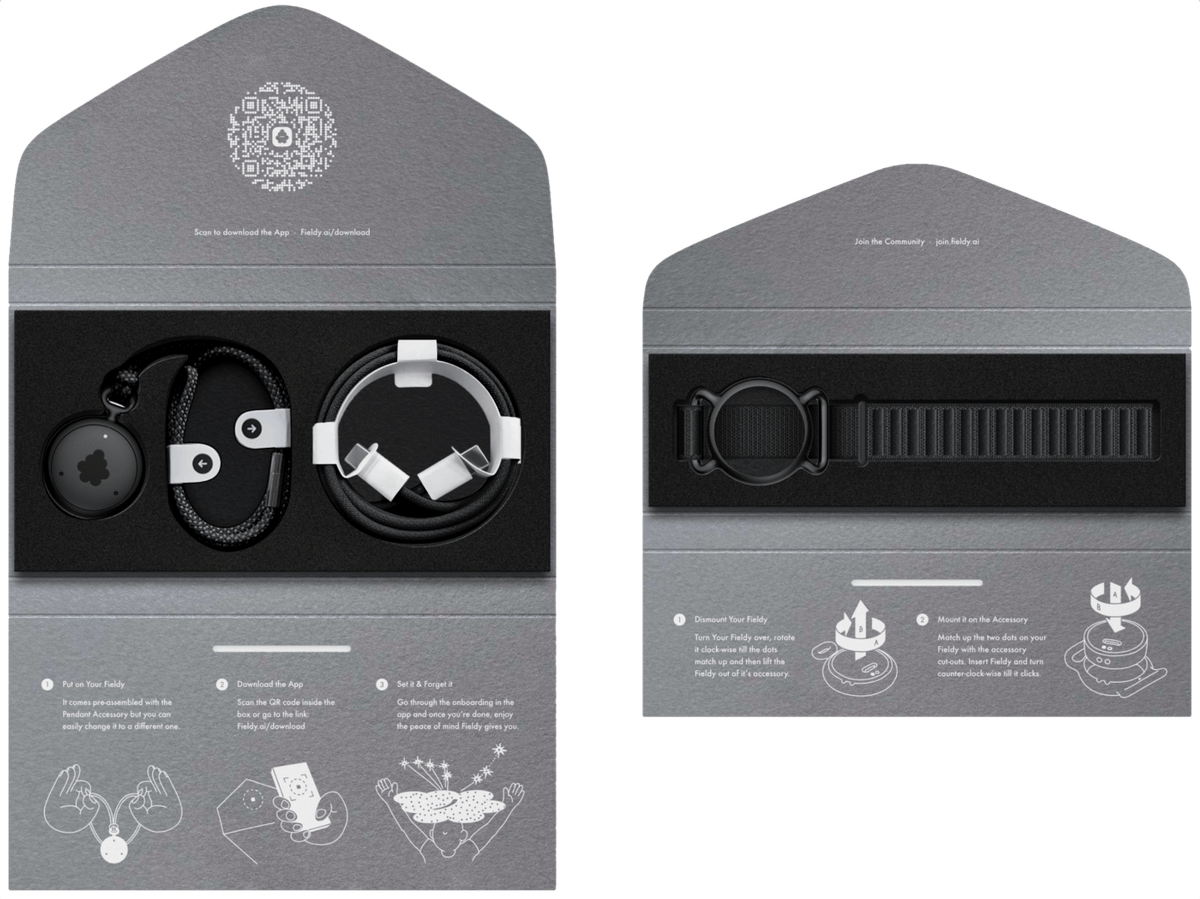
- Fieldy 3 wearable AI device (pre-assembled with pendant accessory)
- USB-C charging cable
- Quick start guide with QR code
- Watch accessory (if ordered)
What Fieldy does
Once connected and powered on, Fieldy transcribes whenever you tell it to: tap “Start Transcribing” in the app to begin, and “End Transcribing” when you’re done.
- Transcribing: Tap “Start Transcribing” to begin and “End Transcribing” to finish. Each conversation is saved on its own and can be up to 3 hours long. Fieldy stops automatically at the limit.
- Transcription: Conversations are transcribed in real time and appear in the app as you speak.
- Summaries: Open a conversation and tap “Summarize” to generate a summary. You can choose a summary template first. Every conversation gets a transcript and a title on its own; the summary is created when you tap Summarize.
- Ask about a conversation: Use “Ask / Search” inside any conversation to find details or ask questions about what was discussed.
- Offline sync: Conversations transcribed without your phone sync automatically when reconnected.
Quick start
- Put on your Fieldy: It comes pre-assembled with the pendant accessory, but you can easily swap it for a different one.
- Download the app: Scan the QR code inside the box or go to Fieldy.ai/download. You can also download directly from the App Store (iOS) or Google Play Store (Android).
- Complete onboarding: Follow the steps in the app. Once paired, tap “Start Transcribing” whenever you want Fieldy to capture a conversation. The live transcript appears as you speak. Tap “End Transcribing” when you’re finished.
Important Pair your Fieldy through the app, not through your phone’s Bluetooth settings. Going through your phone’s Bluetooth settings directly is one of the most common setup issues.
Tip If no light appears when you first power on, charge the device first.
Pairing your Fieldy
Follow these steps the first time you connect Fieldy to your phone, or after a factory reset.
- Power on your Fieldy: press and hold the button for 2 seconds. The LED will pulse blue.
- Make sure that your phone’s or tablet’s Bluetooth is turned on.
- Open the Fieldy app on your phone and tap “Pair Fieldy”.
- Follow the in-app prompts: the app will find your Fieldy automatically.
- Confirm the pairing on your phone when prompted. The LED will switch to steady white once connected.
- Grant permissions: allow microphone access and background app activity when asked. Both are needed for uninterrupted transcription.
Always pair through the app, not through your phone’s Bluetooth settings. Using your phone’s Bluetooth settings directly is the most common setup issue.
Setting your Fieldy up
Next steps after pairing your device successfully:
- Language: Once connected, you’ll be able to choose which languages you speak most often for faster and more accurate transcription. You can update this at any time in Settings.
- Speaker profile: You’ll be asked to read a short text out loud so Fieldy can recognise your voice and distinguish you from others. If you’re unable to do this right now, you can skip this step and set it up later in Settings → Create speaker profile → Set up.
Wearing your Fieldy
Best practices for clear transcription:
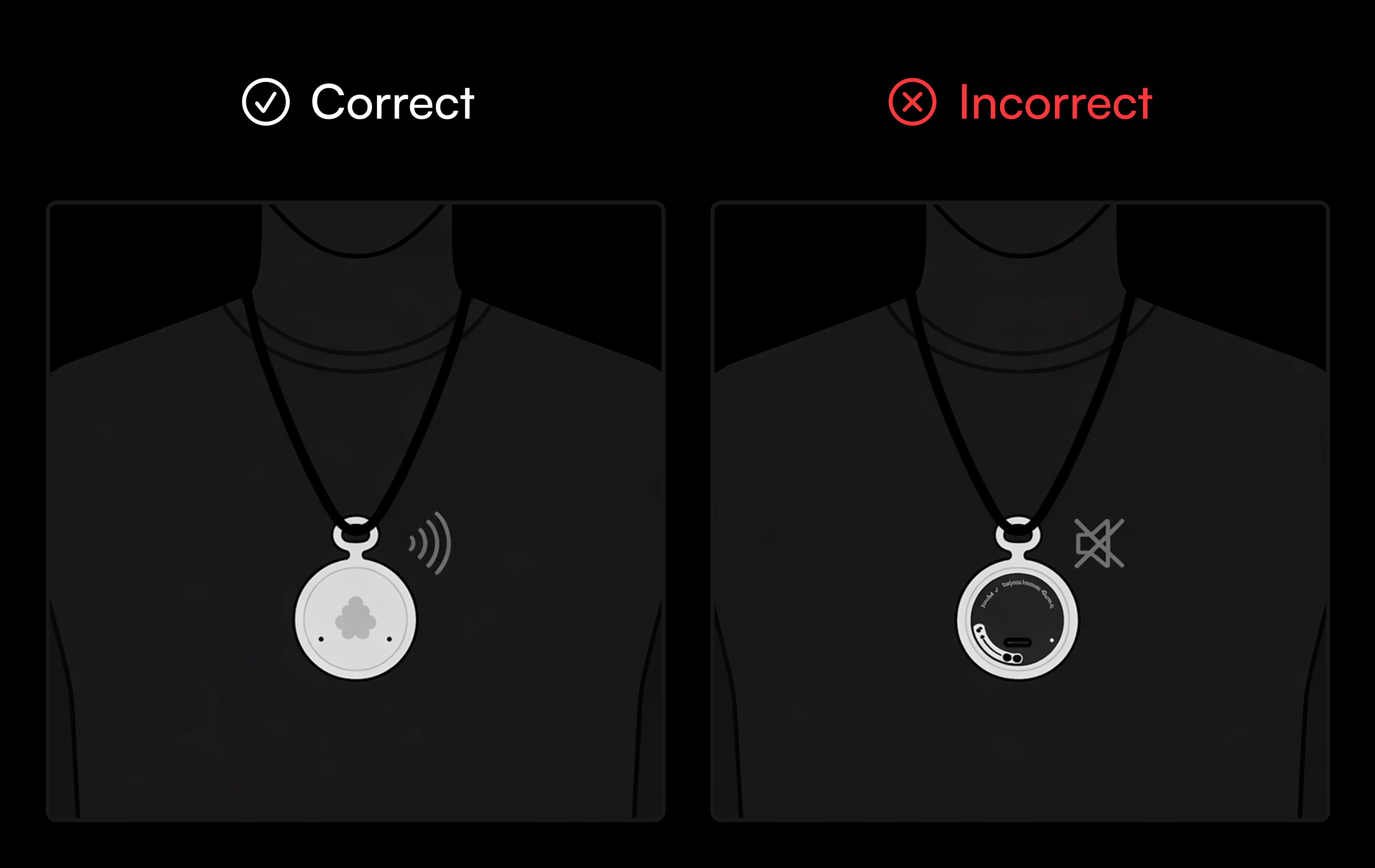
- Placement: Wear the device with the logo facing outward. This side has the best signal for transcribing conversations.
- Clothing: Avoid wearing under heavy jackets or thick scarves, which may muffle the microphone.
- Environment: Fieldy works best in quiet to moderate noise environments.
Tip From user feedback, we heard that Fieldy with the watch accessory works better.
Accessory system
Fieldy 3 features a twist-lock mounting system that lets you swap accessories in seconds.
Removing your Fieldy from an accessory
Turn your Fieldy over so the logo faces down. Rotate it clockwise until the dots align. Lift the Fieldy free from the accessory.
Mounting onto an accessory
Turn your Fieldy over so the logo faces down. Align the two dots on your Fieldy with the cut-outs on the accessory. Insert and rotate counterclockwise until it clicks.
Battery LED status and power
The Fieldy logo on the front of the device is the button. Press it to power on/off, check connection status, and more.
Charging
- Connect the USB-C cable to the port at the bottom of the device.
- Plug into any USB power source (computer, wall adapter, or power bank).
Green
Full / Good (80%+)
Yellow
6-10 hours left
Red
Charge immediately
Info The device can be used while charging.
For more details on security and compliance, read: Fieldy is HIPAA-compliant: AI note-taking you can trust with confidential data.
Powering on and off
- Power on: Press and hold the button for 2 seconds. The LED pulses blue (pairing mode).
- Power off: Press and hold the button for 2 seconds while the device is on.
Connection check
Fieldy is always connectable via Bluetooth when it has battery. When the device is paired to your phone, the app displays the battery level whenever Fieldy is nearby, no button press required.
LED indicators
All LED behaviour below applies to firmware 3.0.0 and above.
Standard LED indicators
Pulsating Blue
Pairing mode / Searching for phone (Default after Factory Reset)
Steady White
Connected and Operational
Blinking White
Device Muted or Offline Storage Full
Steady Red
Battery Critical (<5%)
Recording light
Turning the recording light off disables the LED entirely so Fieldy can be worn discreetly.
Turning the LED off
- Open the app and go to Settings → Device settings.
- Toggle “Recording Light” off. The LED will turn off immediately.
Turning the LED back on
- Return to Settings → Device settings.
- Toggle “Recording Light” on. The LED will resume normal behaviour.
Info While the LED is turned off, device button feedback (connection blinks) is also suppressed. Check connection status in the app instead.
Offline storage
If you leave your phone behind, Fieldy 3 stores up to 3 days of conversations directly on the device.
- Conversations sync automatically once you’re back in Bluetooth range.
- Keep within 30 feet / 9 meters of your phone for best connectivity.
- The app must be open with an active internet connection to sync.
Device features
Advanced background noise filtering
Crystal clear audio
High-performance MEMS microphone
Optimised voice capture for transcription
Haptic feedback
Subtle vibration confirmation
Customisable action button
Set your favourite quick action
Stealth mode (controllable LED)
Hide LED output for discreet use
Specifications
| Specification | Value |
|---|---|
| Dimensions | 29 x 29 x 11 mm |
| Weight | 17 g |
| Material | Polycarbonate enclosure |
| Battery life | Up to 7 days |
| Maximum conversation length | 3 hours (stops automatically) |
| Charging | USB-C fast charging |
| Offline storage | Up to 3 days of conversations |
| Water resistance | IP65: splash and rain resistant (not submersible) |
| Security | HIPAA-compliant, end-to-end encrypted |
Privacy and data
Fieldy transcribes ambient conversations in real time. Here’s exactly what happens to your data:
- Only your text transcript is kept. Audio is retained only while it is being transcribed. Once transcription is complete, it is deleted.
- Your data is accessible only to you: encrypted in transit and at rest, secured, and never shared with third parties.
- You stay in control: delete any conversation or your entire account at any time from within the app.
Security and compliance
Fieldy is designed to meet HIPAA requirements, and your data is processed in SOC 2 certified data centers. To learn more about how your data is protected, visit this article on HIPAA-compliant security.
Troubleshooting
Device won’t turn on
- Charge the device fully using a different cable and outlet.
- Press and hold the button for 2 seconds.
- If still unresponsive, perform a power reset: hold the button for 10 seconds. The LED will flash, then the device will restart.
Factory reset
Use this to wipe Bluetooth pairing data and return to pairing mode. This is a last resort.
- Single-click the button, then immediately press and hold for 10 seconds.
- The LED should switch to pulsating blue. If it returns to white instead, repeat the sequence.
- On your phone, go to Bluetooth settings and forget the Fieldy device.
- Re-pair through the Fieldy app.
Warning A factory reset clears all Bluetooth pairing information. You must forget Fieldy from your phone’s Bluetooth settings before re-pairing.
Transcription stopped on its own
- Conversations are limited to 3 hours. Fieldy stops automatically at the limit and saves the conversation. Tap “Start Transcribing” to begin a new one.
- If transcription stopped earlier than that, check the battery level in the app. The app always displays the battery status when Fieldy is paired and nearby.
Frequent disconnections
- Make sure the logo side is facing outward.
- Keep your phone within 30 feet.
- Check for physical obstructions between the device and your phone.
- Make sure the Fieldy app is running in the background.
- On Android: disable battery optimisation for the Fieldy app. The OS may be closing it automatically, which stops conversations from syncing. Go to Settings → Apps → Fieldy → Battery → Unrestricted.
- If disconnection persists, forget Fieldy from your phone’s Bluetooth settings and re-pair through the app.
Support
- If you need support, reach us at hey@fieldy.ai or use the in-app support chat. Tap the button in the bottom right corner of the app.
- Please note: we do not offer phone support or one-on-one consultations.
Guide Version: 3.1
Updated: July 2026
Firmware: 3.2.10
© 2026 Fieldy AI. All rights reserved.