Fieldy Desktop Guide
Available for macOS (Apple Silicon) and Windows.
1. Download and install
Download the Fieldy Desktop app from fieldy.ai/desktop.
Once downloaded, open the installer and follow the on-screen steps to complete the installation.
2. Logging in
- Open the Fieldy Desktop app.
- Click Sign in with the web: a browser tab opens and links you to
auth.fieldy.ai/auth.
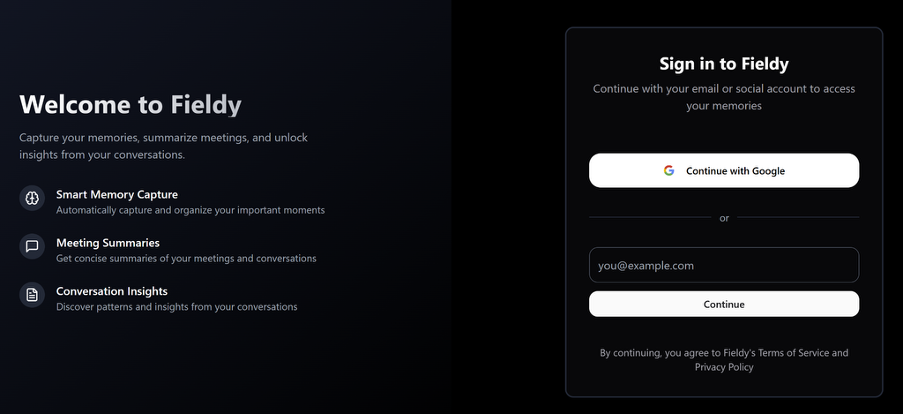
- Sign in with your Google account or email address.
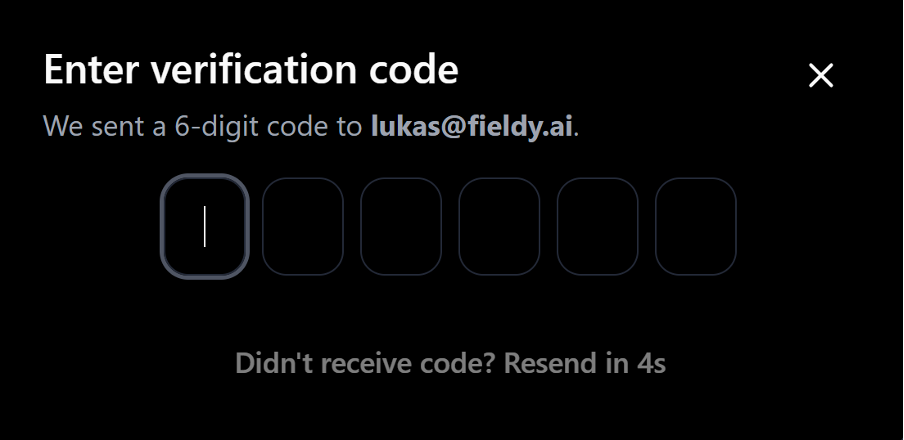
If you select email, a 6-digit code will appear on screen. Please check your email inbox, enter the verification code, and you’re in.
Info Make sure to use the same email address as your mobile app. All conversations and templates are synced across both: anything captured on your phone appears on desktop automatically, and vice versa.
3. Interface overview
The app is split into two panels:
Left panel: your notes list
- All your past conversations are listed here, organised by date, with the time and duration shown for each.
- Use the Search Notes bar at the top to find any past conversation.
- Your account email is shown at the bottom of the panel.
Right panel: active note
- This is where your current transcription appears.
- When a session is active, you’ll see Transcribing… in the centre with a timestamp showing the current time and duration.
- Once a conversation ends, the transcription appears here, with each speaker labelled (A, B) and timestamped line by line.
- At the top right you’ll find a Share button and a delete icon.
Bottom bar
- The bottom bar shows a red transcription button to stop a transcription session.

- Next to it is the Ask Fieldy about this… chat bar. Type here to ask questions about current and previous conversations, request summaries or action items.

4. Starting a transcription
- Click the red transcription button in the bottom bar to start a new session.
- Fieldy will begin transcribing immediately. You’ll see Transcribing… appear in the main panel.
- Speak naturally. Each speaker is detected and labelled automatically.
- To stop, click the red button again. Fieldy will generate a summary automatically once the session ends.
Tip Make sure your app settings allow Fieldy notifications, as it can detect meetings automatically and the pop-up allows for a quick start of transcription.
Tip Headphones work. Fieldy records your microphone and your computer’s audio, so the other people on a call are transcribed even when you listen through headphones. On a Mac, allow Fieldy in System Settings, Privacy & Security, Screen & System Audio Recording.
5. Viewing a completed note
Click any note in the left panel to open it. You’ll see:
- The AI-generated summary at the top, broken down by topic.
- The full Transcriptions section below, with each line labelled by speaker and timestamped.
- The Ask Fieldy about this note… bar at the bottom. Use this to ask follow-up questions or extract action items from the conversation.
6. Sharing and exporting
There are two ways of sharing and exporting your conversations:
- If you want to copy the link and share your notes as a link, click Share. It will automatically generate and copy the link for you.
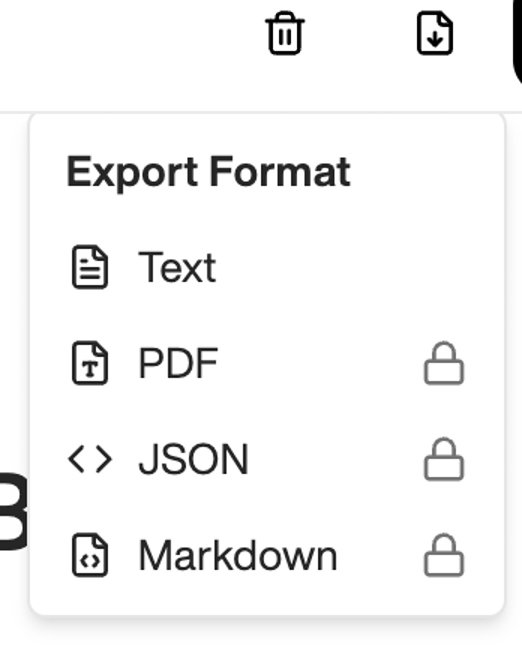
- If you want to download the conversation in another format, click and select one of the export formats: Text, PDF, JSON, or Markdown. Next, select your preferred location in your folders and enjoy your conversation.
7. Templates
Templates work just like in the mobile app and help you quickly re-summarize conversations using predefined formats.

To access them, open the app and click the Templates icon at the top. You’ll find a set of default templates ready to use, and you can also create your own by clicking Create Template and customizing it to your needs.
8. Calendar integration
Calendar integration allows you to sync your conversations with your calendar, making it easier to stay organized.
To set it up, open the desktop app and go to Settings from the bottom-left corner. Then navigate to Integrations, where you’ll find options for Google and Outlook. Simply connect your preferred account using your email to get started.
9. Changing the microphone
If your conversations are transcribed poorly, please try switching your default transcription microphone. For that please go to Settings (bottom-left corner), click on the Input device (microphone emoji) and select the microphone you want conversations to be transcribed with.
10. Troubleshooting
- I linked the wrong account: Sign out on the web page that opened, sign in with the correct account, then go back to Fieldy Desktop and repeat the sign-in steps.
- A pop-up or redirect is being blocked: Open your browser settings and allow pop-ups and redirects for the Fieldy sign-in page, then try again.
- Other people on the call are missing from the transcript: On a Mac, open System Settings, Privacy & Security, Screen & System Audio Recording, allow Fieldy, then start a new recording.
- The transcription quality is poor or inaccurate: Try switching your microphone. Go to Settings (bottom-left corner), tap the microphone icon, and select a different input device.
- App crashes or freezes during transcription: Force quit and reopen; the session may be partially saved.
- No summary appeared after my session ended: Make sure you ended the session by clicking the red transcription button again, since closing the app mid-session may prevent the summary from generating. If it still doesn’t appear, reopen the note from the left panel.
- The share link isn’t generating: Check your internet connection and try clicking Share again. If the issue persists, restart the app.
11. Support
If you need help, reach us at hey@fieldy.ai or use the in-app support chat.
Please note: we do not offer phone support or one-on-one consultations.