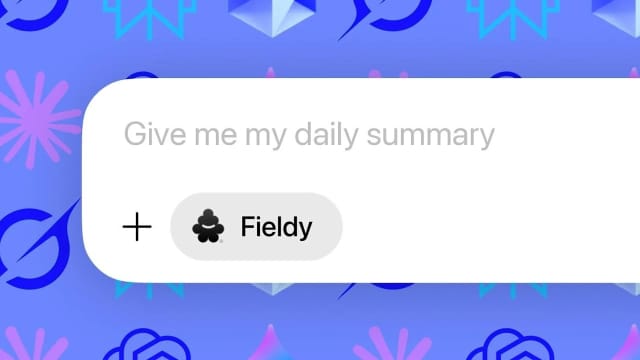
Most AI tools know what you type into them. They do not automatically know what happened in your customer calls, hallway conversations, interviews, consultations, lectures, inspections, or daily voice notes.
That is the gap this launch is meant to close.
Fieldy now gives you two ways to use your conversation data outside the Fieldy app: MCP for AI tools like Claude, ChatGPT, and Cursor, and a Public API for developers building custom workflows.
The short version: access your Fieldy conversations and summaries from your own tools, workflows, or preferred chatbot.
The problem: conversation context is hard to reuse
AI assistants are only as useful as the context they can reach.
You might already have the important context in Fieldy: what a customer objected to, what a doctor recommended, what your team decided, what an interviewee said, what a contractor promised, or what you captured while walking between meetings.
But if that information stays inside a note-taking app, you still have to search, copy, paste, summarize, and reformat it manually.
The Fieldy Developer Platform is built for the next step: taking captured conversations and making them useful in the places where work actually continues.
What launched
There are two new integration surfaces:
Fieldy MCP is for Claude, ChatGPT, Cursor, and other MCP-compatible AI tools. It lets you ask natural-language questions about your Fieldy conversations.
Fieldy Public API is for scripts, services, dashboards, CRMs, task syncs, and custom agents. It lets you build direct HTTP integrations against your Fieldy data.
Use MCP when the interface is a chatbot. Use the Public API when you are writing code.
In practice, many people will use both: MCP for quick reasoning over conversations, and the API for repeatable automation.
What data can you access?
The Public API exposes the parts of Fieldy that are useful after a conversation ends:
- Conversations: title, summaries, content, timestamps, location metadata, keywords, quotes, and related context.
- Transcriptions: raw timestamped transcript segments, including speaker information where available.
- Tasks: action items extracted from conversations, including status and due-date fields.
- Speaker profiles: named speakers and colors used to identify voices in transcripts.
- Memory templates: the templates and prompts that shape how Fieldy summarizes different conversation types.
- Sharable links: links for sharing selected conversation fields with others.
- User info: basic account details for the authenticated user.
That matters because different workflows need different levels of detail. A CRM sync may only need the title, short summary, and follow-up tasks. A research workflow may need exact transcript segments and speaker labels. A personal assistant may need both summaries and raw quotes.
Fieldy MCP: ask your AI tool about your conversations
MCP stands for Model Context Protocol. It is an open standard for connecting AI applications to external tools and data sources.
Fieldy MCP lets an MCP-compatible client search and retrieve your Fieldy conversation context after you authorize access.
The endpoint is:
https://api.fieldy.ai/mcpUse MCP when you want to ask questions like:
- “What did I promise during yesterday’s customer call?”
- “Find the conversation where we discussed the pricing objection.”
- “Summarize my meetings from this week and turn them into follow-up tasks.”
- “Pull the transcript from the conversation with the contractor.”
- “Find every conversation where we mentioned the Q2 launch plan.”
For Claude Desktop, the config looks like this:
{
  "mcpServers": {
    "fieldy": {
      "url": "https://api.fieldy.ai/mcp",
      "transport": "http"
    }
  }
}
When your MCP client opens the browser to authorize Fieldy, sign in with the same email you use in the Fieldy app. If you use Apple Private Relay, use the relay email shown in the app.
Read the MCP setup guide at fieldyai.github.io/docs/#/mcp.
Public API: build directly on top of Fieldy
The Fieldy Public API is for developers who want direct REST access to Fieldy data.
The base path is:
https://api.fieldy.ai/api/public/v2Requests use a Fieldy API key in the Authorization header:
Authorization: Bearer sk-fieldy-...A simple conversation query looks like this:
curl -H "Authorization: Bearer sk-fieldy-..." \
  "https://api.fieldy.ai/api/public/v2/conversations?startTime=2026-05-01T00:00:00Z&endTime=2026-05-07T23:59:59Z&pageSize=10"
For raw transcript segments, query transcriptions by time range:
curl -H "Authorization: Bearer sk-fieldy-..." \
  "https://api.fieldy.ai/api/public/v2/transcriptions?startTime=2026-05-01T09:00:00Z&endTime=2026-05-01T10:00:00Z&pageSize=100"
Current API keys are rate-limited to 30 requests per minute. If you are building a sync job, use pagination, store cursors or timestamps, and add backoff instead of polling aggressively.
Read the full API reference at api.fieldy.ai/docs.
Which one should you start with?
Start with MCP if you want the fastest path from “I recorded this” to “my AI assistant can reason about it.”
Good first MCP prompts:
- “Review my Fieldy conversations from today and list only commitments I made.”
- “Find the call where the customer mentioned implementation risk.”
- “Summarize the last three conversations with this client and prepare a briefing.”
- “Extract decisions, blockers, and next steps from this week’s product conversations.”
Start with the Public API if you already know the destination system.
Good first API projects:
- Sync approved Fieldy tasks into Linear, Jira, Asana, or Notion.
- Push customer-call summaries into a CRM.
- Build a private dashboard of conversations by day, customer, topic, or template.
- Export transcript segments for research, coaching, QA, or internal review.
- Generate weekly summaries for a team, client, or project.
Three useful workflows to build first
1. Weekly follow-up review in Claude or ChatGPT
Connect Fieldy through MCP, then ask your AI tool to review the last week of conversations.
A useful prompt:
Search my Fieldy conversations from the last seven days. Return a table with: person or company, topic, promises I made, open questions, and suggested next action. Only include items that require follow-up.
This is useful because it forces the assistant to produce an operational view, not just another summary.
2. CRM enrichment from customer conversations
Use the Public API to fetch conversations in a time range, filter for customer calls, then push selected fields into your CRM.
For each relevant conversation, store:
- Short summary
- Objections or risks
- Buying intent
- Mentioned competitors
- Follow-up tasks
- Notable quotes
- Link back to Fieldy or a sharable conversation link
This gives sales and success teams structured context without asking anyone to rewrite their notes.
3. Personal conversation memory for deep work
Use MCP when you need recall and synthesis:
Look through my Fieldy conversations about the launch plan. What decisions have already been made, what is still unresolved, and who owns each next step?
Use the API when you want a repeatable output:
- Every Friday, fetch the week’s conversations.
- Group them by topic or template.
- Create a concise review with tasks, risks, and unresolved questions.
- Save it to your notes app or send it to yourself.
The difference is simple: MCP is better for interactive reasoning; the API is better for scheduled workflows.
How Fieldy fits next to dictation and meeting-note tools
People often compare AI voice tools across several categories: dictation apps, AI meeting note takers, meeting scribes, transcription tools, and wearable recorders.
Fieldy is not trying to be a direct keyboard dictation replacement for tools like Wispr Flow. Dictation tools are optimized for turning speech into polished text inside whatever app you are typing in.
Fieldy is different. It is built for capturing real-world conversations and turning them into searchable summaries, transcripts, tasks, speaker context, and structured memory.
So if you want faster voice-to-text in every text field, a dictation tool may be the better fit. If you want your meetings, recordings, and spoken conversations to become usable context inside Claude, ChatGPT, Cursor, CRMs, task managers, dashboards, or custom AI agents, Fieldy is built for that workflow.
This is also one of the bigger differences when people compare AI recorder hardware. If you are choosing between Plaud alternatives, our Plaud alternatives guide covers where API and MCP access fits next to device form factor, templates, speaker attribution, sharing, and plan pricing.
Security notes before you connect everything
Conversation data can be sensitive. Treat API and MCP access the same way you would treat access to email, documents, or CRM data.
- Keep API keys private and never commit them to source control.
- Revoke keys you no longer use.
- Give MCP access only to AI tools you trust.
- Review what your AI tool is asking to retrieve before approving broad access.
- Build sync jobs to fetch only the data they need.
- Be careful when moving transcripts into third-party systems with different privacy rules.
The goal is not to spray conversation data everywhere. The goal is to make the right context available in the right workflow.
Setup checklist
To try MCP:
- Open your MCP-compatible client’s connector settings.
- Add
https://api.fieldy.ai/mcp. - Authorize Fieldy in the browser.
- Use the same email you use in the Fieldy app.
- Ask your AI tool to search, summarize, or retrieve Fieldy conversations.
To try the Public API:
- Create or copy your API key from Fieldy Developer Settings.
- Keep the key private.
- Send authenticated requests to
https://api.fieldy.ai/api/public/v2. - Start with a narrow date range.
- Add pagination and backoff before running scheduled syncs.
Start with the docs:
FAQ
Does Fieldy have a public API?
Yes. The Fieldy Public API gives developers REST access to conversations, summaries, transcriptions, tasks, speaker profiles, memory templates, user details, and sharable links.
Can I connect Fieldy to Claude?
Yes. Add the Fieldy MCP endpoint, https://api.fieldy.ai/mcp, to a Claude client that supports MCP or custom connectors, then authorize Fieldy in the browser.
Can I connect Fieldy to ChatGPT?
Yes, if your ChatGPT plan and workspace support custom connectors or apps that use MCP. Add the Fieldy MCP endpoint, authorize your Fieldy account, and use Fieldy as conversation context inside ChatGPT.
Is Fieldy an AI note taker, meeting scribe, or voice recorder?
Fieldy captures conversations and turns them into summaries, transcripts, tasks, speaker context, and structured memory. That makes it useful as an AI note taker, conversation recorder, and meeting scribe for people who want their notes to be searchable and usable after the conversation ends.
Is Fieldy a Wispr Flow alternative?
Not directly. Wispr Flow-style tools focus on dictating polished text into other apps. Fieldy focuses on recording conversations and making summaries, transcripts, and tasks available to AI tools and developer workflows.
Should developers use MCP or the Public API?
Use MCP when the experience is an AI chat interface, such as Claude, ChatGPT, Cursor, or another MCP-compatible client. Use the Public API when you are building a product, script, backend service, dashboard, CRM sync, or automation.
A more open Fieldy
Fieldy is built to capture the conversations that matter. With the Public API and MCP server, those conversations can now help you wherever your work actually happens.
Use your own tools. Build your own workflows. Connect your preferred chatbot. Fieldy now gives developers the access layer to make that possible.